As IMS moves to a quicker, bi-monthly release cadence, we wanted to make sure that we highlight the bigger features from the recent releases. Read through to go through what we have grouped together from the three recent releases into this post: 4.11 (May 2026), 4.12 (July 2026), and 4.13 (September 2026).
This time around, our product team have kept focus on removing friction in the disciplines that depend on IMS every day for integrity, reliability, and safety. Anomalies are now tracked the same way across IMS PEI, IMS Civil, and IMS PLSS, with structured risk scoring and automated follow-up, and the API RBI 581 continues to grow more capable with every release, some features aimed at productivity gains for configuration and field work in IMS4Field, as well as a meaningful approval fix in IMS SIS.
New Anomaly Management brings IMS PEI, IMS Civil, and IMS PLSS Together
Before IMS Release 4.12, anomaly records were captured mostly in IMS PLSS, and each discipline tracked odd findings or anomalies in its own way. So, an anomaly found by a corrosion engineer, a civil inspector, and a PEI inspector could be scored, routed, and closed out differently even on the same site. To close this gap, we introduced anomaly management process that works the same way across all these three products, so every discipline now scores risk and generates follow-up work through one consistent process. Existing IMS PLSS anomaly records migrate automatically into the new structure, so nothing needs to be re-entered by hand.
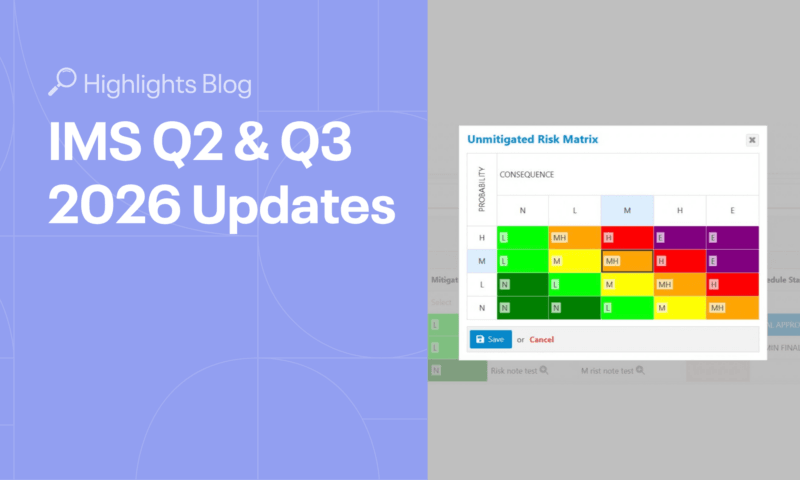
Anomaly Assessments can now be scored against a dedicated Risk Matrix, once for the unmitigated risk before considering existing controls, and once more for the mitigated risk after controls are applied. IMS then enforces a logical relationship between the two so that the mitigated risk can never exceed the unmitigated risk. Based on the assessment’s class and risk position, IMS can also recommend a Response. When it is selected, it automatically generates a pre-filled Schedule or Action Item List using the information already in the Anomaly. For those that prefer to choose a Response manually, that is also still possible.

Figure 1. Risk Matrix Scoring in Anomaly Assessments
This same logic carries through to recurring monitoring cases. When a recurring Schedule linked to an Anomaly is credited, IMS now clones the latest Assessment onto the next-cycle Schedule automatically, so routine “still open, still monitor” cases no longer need to be re-entered from scratch at every cycle. Anomalies can also be linked directly to one or more CMLs, or to a Measurement Set without first going through an ECH observation, and a Circuit now shows a roll-up of every Anomaly linked to it through its CMLs and Measurement Sets.
Now that you have your anomalies, it is now possible to track then via the new Anomalies Insights dashboard that is available out of the box, showing active Anomaly counts, Anomalies by type, status, and unmitigated risk, overdue inspections, and average closure time. Anomalies and Assessments, including Risk Matrix selections can also be created and updated through the standard IMS bulk import mechanism, and when a Dynamic Forms import creates or updates a trackable PEI observation, IMS now automatically links or creates the associated Anomaly as well.

Figure 2. Anomaly Reports in IMS
Our latest Release 4.13 builds directly on this foundation. Findings can now be turned into Anomalies in one action from an ECH’s Findings grid by selecting one or more findings and clicking Bulk Create Anomaly, which pre-fills Equipment, Location, Question, Answer, and Date automatically, or by using the new Track as Anomaly option to link a finding to an existing Anomaly instead. Anomaly Reports can now be generated directly from the Anomaly grids in IMS PEI, IMS Civil, and IMS PLSS for one Anomaly or several at once, and a new Anomaly section on the CML Details page lists every Anomaly linked to that CML without navigating away. Lastly, we have also made sure that editing a reviewed Assessment clears its Reviewed By and Reviewed Date automatically, so the review status always reflects the Anomaly’s current status.
IMS PLSS also gains a genuinely new way to see anomaly risk. With the introduction of an interactive Map view for pipeline data in Release 4.13, Anomalies now appear directly on the map alongside Pipeline Equipment, Sectioning, Test Posts, and Defects, each coloured by its Unmitigated or Mitigated Risk Level from Negligible to Extreme. This now allows operators to see where attention is needed across an entire pipeline network at a glance.

Figure 3. Anomalies on Maps in IMS PLSS
For more information on Anomaly Management, see The IMS Handbook.
Discover some of the highlighted new features in Anomaly Management here: Anomaly Risk Assessment Matrix, Anomalies Insights Dashboard, Create an Anomaly from an ECH, and Anomalies on Maps.
Continued Enhancements in Risk Analysis and Degradation Management in IMS PEI
IMS PEI’s tools for degradation management and risk analysis keep expanding with two releases in a row adding real analytical depth to it. Release 4.12 gives engineers a second way to calculate and visualize RBI 581 risk alongside the traditional Risk Matrix. Our IMS PEI users can now choose the ISO Risk Plot method, which represents risk on a continuous, log-log scale and supports more detailed analysis of Area and Economic Consequences. A new Risk Calculation Method setting that is configurable at the Site, Plant, or Unit level, controls which approach a given RBI 581 analysis uses, so operators weighing detailed quantitative results against a simpler matrix view no longer must pick one methodology for every asset.

Figure 4. ISO Risk Plot
Release 4.13 extends degradation management in a different direction – Furnace tubes. Our team has also added two new TMIN calculators, Elastic Design and Rupture Design under a dedicated Furnace Tubes group on the TMIN Calculators page that are both based on API 530. Earlier, minimum renewal thickness for furnace tubes had to be worked out outside IMS, but going forward, engineers can now enter tube data, calculate the value, and apply it directly to a CML with both calculators showing the intermediate Stress Thickness above the final Minimum Required Thickness so each step of the calculation can be checked on its own.

Figure 5. TMIN Calculators for Furnace Tubes as per API 530
For more information on RBI 581, see: The IMS Handbook. Learn more about the above TMIN calculation improvement here: New TMIN Calculators for Furnace Tubes (API 530).
Ease of Configuration in IMS and Field Work in IMS4Field
As with our past IMS releases, we have focused on cutting time out of daily configuration and field work which adds up to real savings for the people running IMS daily. IMS4Field’s search and filtering saw a substantial upgrade in Release 4.12, where field users can now filter asset records by Hierarchy (Site, Plant, Unit) using the familiar scoping bar, or by Equipment and Schedule IDs, Work Orders, Labels, and Responsible Person, using a filtering tool similar to the one in the IMS application. A new grid layout lets users select and download multiple records with a single click and switching between Online and Local modes is easier too. It further gives the users a prompt to control automatic Schedule downloads on startup.

Figure 6. Easy Switching Between Online and Local Modes in IMS4Field
Furthermore, configuration within IMS itself got lighter as well. FLOC Type was previously required to define inspection default settings. It is now optional, since Equipment Group and the other relevant parameters are enough on their own to define a default and maximum interval, though FLOC Type can still be added where needed to define an exception for a specific combination rather than as standard behaviour. This reduces the configuration effort required by up to 60%, which matters most for sites bringing large equipment populations onto IMS for the first time.

Figure 7. Simplified Inspection Default Settings
Release 4.11 added a set of concrete changes to the IMS workflow. IMS Bookmarks let site administrators build custom URLs to resources hosted outside IMS using details like FLOC or Equipment ID from the object currently open. An Action Items dashboard was also introduced, which shows open versus closed Action Items and recent activity. Additionally, prominent hyperlinks from Drawings to their own Details pages were added. This makes Drawings easier to find and manage across every IMS module. Release 4.13 extends Bookmarks further, so they can now be scoped to a specific Site, Plant, or Unit at creation time rather than only being available everywhere, which matters once a site has more than a handful configured.

Figure 8. IMS Bookmarks
For more information on IMS4Field, see The IMS Handbook. Discover the other above-mentioned improvements here: Simplified Inspection Default Settings, and IMS Bookmarks.
Traceability and Approval Improvements in IMS SIS
IMS SIS saw smaller, but more targeted updates across these releases mostly aimed at giving safety teams a workflow they can trust and audit with confidence. Release 4.11 expanded Event History tracking to SIF Analysis, HAZOP, LOPA, and Equipment, giving safety engineers a clearer record of creation, approval, and status changes. The LOPA and SIF Analysis reports were reworked for consistency in a horizontal layout like an overall row in the assessment summary and hiding sections like Success Criteria or Plant/Unit details when there’s no Subsystem to show them for. Release 4.12 extended Event History further, so copying a HAZOP, LOPA, SIF Analysis, or Equipment record now logs the copy event automatically.
In our latest Release 4.13, our IMS SIS team added a critical step in the approval workflow. Users with Write Approval rights for a location can now disapprove HAZOPs, LOPAs, and SIF Analyses that are Level 1-Approved, not only fully Approved ones. Previously, the only way back for a Level 1-Approved object was a full escalation or a workaround, since there was no direct equivalent to disapproving a fully Approved record. With this update, errors can be corrected earlier in the workflow instead of being worked around later.
For more information on IMS SIS approvals, see: The IMS Handbook.
Ready to explore? Check out these and our other enhancements from this year in our Release Notes and see what these new improvements can do for your team.
准备好演示了吗?
Request a demo to see the new anomaly management software in action or master any IMS Product with Cenosco Academy’s self-paced e-learning programs.